Best Mac Apps 2026: 20 Tools Worth Installing on a New MacBook
Most roundups of the best Mac apps are the same page rewritten every year. This one is ranked from 3,290 real comments on r/macapps, then checked against 59 YouTube reviews and European Mac coverage.

On this page
How this list was built
Most “best Mac apps” roundups are the same page rewritten every year, with the date swapped out and the affiliate links left untouched. This one was built differently.
The base of this best Mac apps 2026 ranking is 3,290 real comments from fifteen recommendation threads on r/macapps and r/mac, covering August 2025 through July 2026. That includes a 492-comment discussion about apps that were worth every penny, a 480-comment thread on one-time purchases without subscriptions, and the annual God Tier app vote. For each tool we counted both how often it was mentioned and the total upvotes on those comments, so one loud opinion would not outweigh fifty quiet ones.
The ranking was then checked against 59 YouTube reviews from 2026, and the descriptions were cross-referenced with French and German Mac coverage from MacGeneration, Korben, heise, Mac Life, Macwelt and ifun.de. European Mac sites tend to test software for longer and are more direct about pricing and trade-offs than English-language affiliate roundups.
The result is a set of twenty essential macOS tools for Apple Silicon Macs. Most cost less than dinner, and half are free. If you want a shorter path, our guide to taking a screenshot on Mac covers the built-in tools first.
Quick comparison table
| App | What it is for | Pricing |
|---|---|---|
| Sowiks | Screenshots with instant links | 7-day trial / Free / $19.99 one-time |
| Besaved | Saving and auto-sorting finds | Free |
| Clop | Automatic media compression | Free / ~9,90 € |
| Raycast | Spotlight alternative | Free / from $8 per month |
| Alfred | Launcher with automation | Free / Powerpack ~26 € |
| PopClip | Actions for selected text | Paid, one-time |
| Supercharge | Small macOS fixes | $6 lifetime |
| Thaw | Menu bar cleanup | Free, open source |
| Rectangle | Window tiling | Free / Pro 9,99 € |
| Alcove | The display notch as a Dynamic Island | $13.99 |
| BetterTouchTool | Gestures and keyboard shortcuts | ~9,20 € / lifetime ~21,50 € |
| Dropover | Drag-and-drop shelf | Free / 4,49 € |
| Maccy | Clipboard history | Free / 11 € |
| Hazel | Automatic file sorting | $25 one-time |
| Keyboard Maestro | Automation for almost anything | $36 one-time |
| Homebrew | Software installation from Terminal | Free |
| Obsidian | Notes in your own files | Free |
| 1Password | Passwords | From 43,80 € per year |
| Little Snitch | Network connection control | 59 € |
| Pearcleaner | Clean app removal | Free, open source |
Screen capture, saving, and visual communication
1. Sowiks: A screenshot tool that ends with a link, not a file
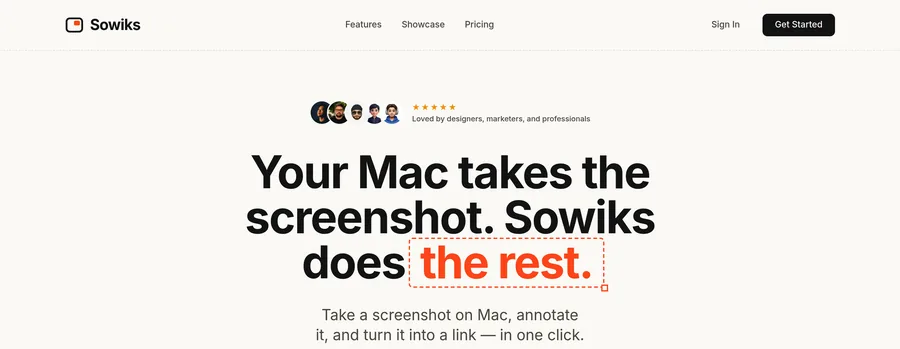
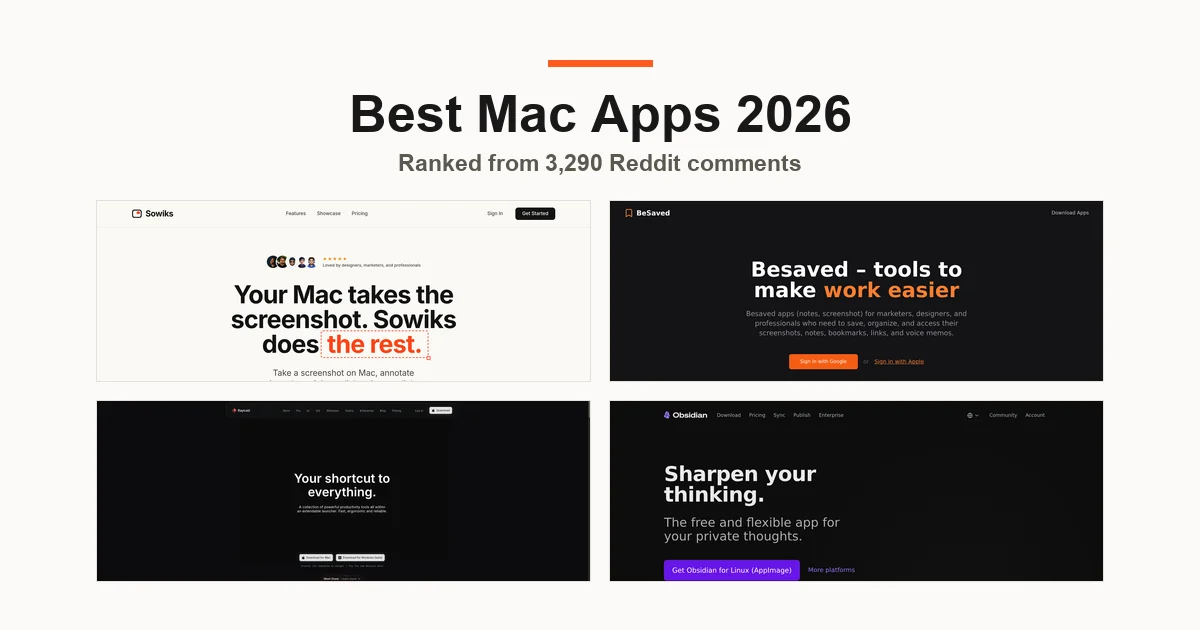
Why you want it. Sowiks is a screenshot and screen recording tool for people who share visual context all day and do not want every capture to become another file on the desktop. The default Mac screenshot workflow is always the same: capture lands as a file, you find it, rename it, compress it, attach it to an email, and repeat that twenty times a day. Sowiks cuts the chain at the start. You take a capture, mark it up with an arrow or blur, and get a ready-to-share link. It goes into Slack, a task tracker, or email without an attachment. Downloads stays clean, and the person on the other end sees the context immediately.
What it does. Sowiks includes thirteen annotation tools: arrows, text, shapes, highlighting, and blur for sensitive data. It captures a region, window, full screen, scrolling content, and text via OCR. Screen recording exports to video or GIF, which is useful when a bug is easier to show than describe. It also adds automatic compression, cloud collections, and, for sensitive material, password-protected links with expiration dates.
Pricing. Everything is unlocked for seven days from the first capture, with no account. After that window capture and the full editor stay free, and Solo is $19.99 one-time, with no subscription: it keeps the other capture modes and OCR, and adds cloud storage, persistent links, and screen recording. Visit Sowiks.
2. Besaved: where everything you save for later lands
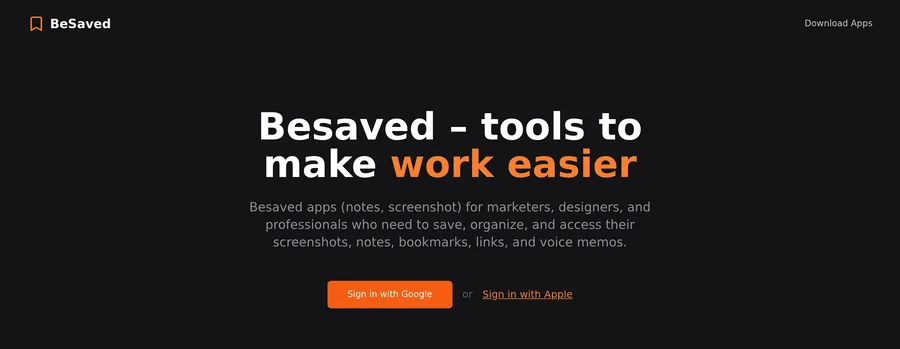
Why you want it. Besaved is a save-it-for-later hub that collects references, links, code snippets, images, files, and notes in one place, then auto-sorts them so the pile stays searchable. Normally a reference, a bit of code, a color palette, an article, or a link from a chat ends up split between Notes, browser bookmarks, and messages to yourself, and after a month finding the one thing you need is guesswork. Besaved recognizes what you saved and applies smart rules to classify it. For a marketer or designer collecting dozens of small discoveries every day, that is the difference between an archive and a junk drawer.
What it does. Separate spaces keep work, side projects, and personal inspiration from bleeding into one another. Besaved saves text, images, files, voice notes, and photos, while OCR pulls text out of images, so a screenshot can be found by a word that appears inside it. You also get tags, filters, fast search, checkboxes, and color highlights. Real-time sync works across Mac, web, and phone, and you can invite teammates into a space.
Pricing. Free. Native app, 6.9 MB, requires macOS 14 or later. Visit Besaved.
3. Clop: Automatic compression for images and videos before you think about it
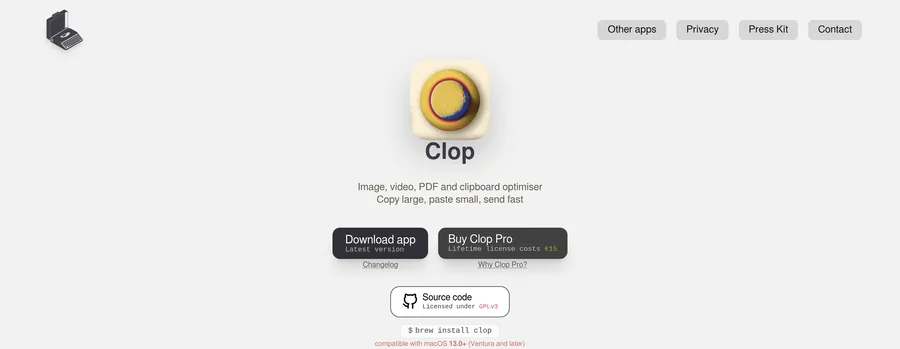
Why you want it. Clop is a background media compressor that makes screenshots and screen recordings small enough to share without manually exporting anything. A 40-second screen recording can easily weigh 60 MB, which Slack will either reject or spend a minute uploading. Clop fixes that in the background: as soon as you copy an image or stop recording, it compresses the file. When you paste, you paste the lighter version. MaxiApple cites the practical result: screen recordings send roughly ten times faster.
What it does. Quality loss is minimal or zero because Clop uses pngquant and mozjpeg under the hood, not crude recompression. It works with PNG, JPEG, HEIC, GIF, MP4, MOV, and PDF. It uses the hardware Media Engine in Apple Silicon chips, so video compression does not eat your CPU. You can also disable it for specific apps.
“I could only afford the base M4 Air, so Clop helps me keep my files and media down to a manageable size.”
Pricing. Free for up to five files per session. Pro is around 9,90 €.
Control speed: launchers and keyboard workflow
4. Raycast: The fastest way to stop reaching for the mouse

Why you want it. Raycast is a Spotlight alternative and app launcher that turns common Mac actions into keyboard commands. Spotlight finds files. Raycast does everything else: launches apps, calculates, converts currency, manages windows, stores clipboard history, expands snippets, and talks to the APIs of your work tools. The practical result is that you stop switching between apps with the mouse. MacGeneration recommends replacing Spotlight outright and assigning Raycast to the same Cmd+Space shortcut. After a week, your hand adapts.
What it does. Raycast has thousands of community extensions for Linear, GitHub, Jira, Notion, translators, calculators, and more. The free version covers 30 days of clipboard history, snippets, quicklinks, and window management. Mac Life gives the honest warning: the first few days have a real learning curve because the app does nothing until you learn how to ask it.
“I use Raycast as a Spotlight replacement, as well as an alternative for AppCleaner, KeyboardCleanTool, Maccy and other apps like Rectangle.”
Pricing. Free. Pro starts at $8 per month and adds AI, sync, and unlimited history. The interface is English-only.
5. Alfred: The classic launcher with serious automation depth
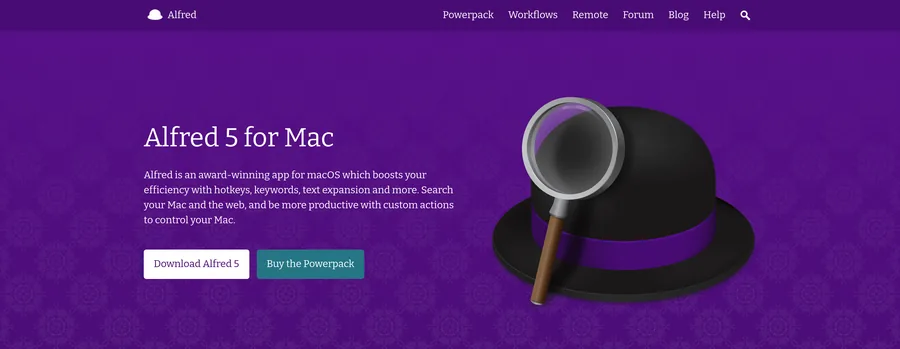
Why you want it. Alfred is a Mac launcher that overlaps with Raycast, but its real strength is heavy automation through Workflows. These are custom chains of actions triggered by a word: collect links and send them to a spreadsheet, rename a batch of files, or compose an email from a template. You build them in a visual editor without code, or download ready-made ones. heise describes Alfred as a launcher that can be extended with almost anything, which is still the most accurate summary.
What it does. The key difference from Raycast is one-time purchase vs subscription, which is decisive for many users. Alfred also has no built-in AI layer and does not push your data into the cloud, so some users stay with it deliberately for privacy reasons.
Pricing. The base app is free. Powerpack is a one-time purchase at around 26 €, with a more expensive lifetime license. English-only.
6. PopClip: A tiny menu that removes half the friction from text work
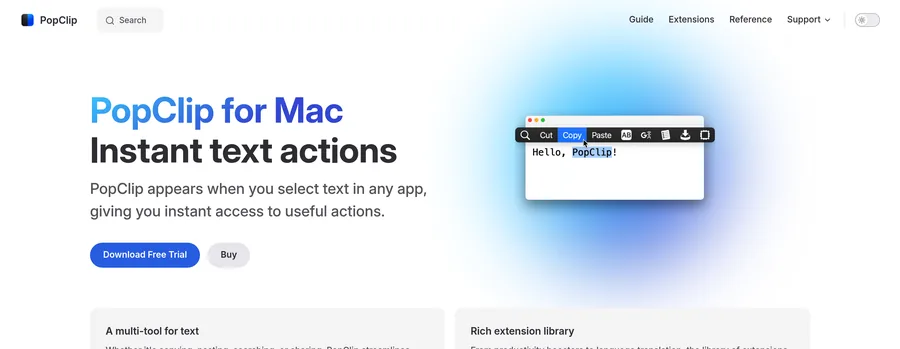
Why you want it. PopClip is a contextual menu for selected text, and it saves time every time you copy, search, translate, or send text somewhere else. Select text and a row of actions appears directly above it: translate, search Google, save to notes, open a link, calculate an expression, or send it to AI. The key point is that the menu is not static. MacPlus notes that PopClip recognizes the type of selection, such as text, address, phone number, or link, and the type of app you are in, then shows only relevant actions. You are not hunting for the right button among twenty.
What it does. PopClip has hundreds of free extensions in a catalog where each one is described clearly, so you can see exactly what you are installing. Unlike most of the category, PopClip is fully localized, including in French.
Pricing. Paid, one-time purchase. A trial is available.
7. Supercharge: Twenty small macOS fixes Apple still has not added
Why you want it. Supercharge is a bundle of small system tweaks that fixes the everyday annoyances macOS keeps leaving in place. Accidentally hit Cmd+Q and close a browser with twenty tabs? Supercharge lets you remap quit to another shortcut. Desktop switching feels slow because of animation? Turn it off. Finder gets “Move to,” AirDrop, and image dimensions in the context menu. Caps Lock can become a Hyper key, a single key that enables all four modifiers and opens an entire new layer of shortcuts.
What it does. The app is light and behaves as if it belongs in the system, which is why Reddit users describe it as one utility that replaces five smaller ones.
Pricing. $6 lifetime. Requires macOS 15.4 or newer.
Windows, menu bar, and display
8. Thaw: The menu bar manager that cleaned up after Bartender
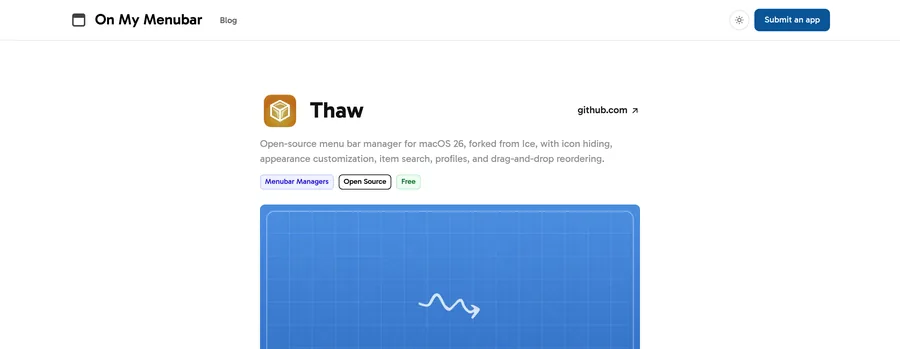
Why you want it. Thaw is a free open-source menu bar manager for MacBooks where the menu bar fills up faster than it should. Ten icons are enough for some to disappear behind the notch forever. Thaw splits items into three groups: visible, hidden, and always hidden. It then reveals the ones you need with a click or keyboard shortcut.
What it does. This is where many roundups are out of date, so the short version matters. For years, the standard was the paid app Bartender. Then the free open-source Ice became the community answer, but its development stopped, while Bartender 6 moved to a new owner, which the community received badly. The current 2026 answer is Thaw, a fork of Ice by developer stonerl: it imports Ice settings, adds item search, profiles, and icon drag-and-drop. It has more than 6 700 GitHub stars and active releases, making it one of the best Mac menu bar apps right now.
“I'd suggest Thaw instead of Ice. It's a fork of Ice but uses less resources and was updated recently.”
Pricing. Free, open source. German localization is available.
9. Rectangle: Keyboard-driven window management for macOS
Why you want it. Rectangle is a window manager that lets you snap and resize Mac windows with keyboard shortcuts instead of dragging everything by hand. On a large monitor, half your window-management time can disappear into mouse fiddling. Rectangle removes that: one shortcut sends a window to half the screen, another to a quarter or a third. If shortcuts are not your thing, there are magnetic zones: drag a window to an edge and it snaps into place.
What it does. Rectangle is free, open source, and written by Ryan Hanson as the successor to the once-popular Spectacle. It divides the screen into halves, thirds, quarters, and even sixths, which is genuinely useful on ultrawide monitors. JustGeek gives advice that is hard to argue with: before paying for Magnet, install Rectangle. There is a good chance you will no longer want to pay.
Pricing. Free. Pro is 9,99 € one-time and adds custom sizes, saved workspaces, and iCloud sync.
10. Alcove: The MacBook notch finally does something useful
Why you want it. Alcove turns the MacBook display notch into a Dynamic Island-style status area, which is more useful than leaving it as dead space. For years, the black cutout at the top of the screen was just an obstruction. Alcove turns it into a place for music controls, notifications, AirPods connection status, volume changes, and battery warnings. The practical benefit is that these small status items stop covering your workspace and live in an area that was already lost.
What it does. You can enable only the scenarios you actually want, so the notch does not become a notification landfill. Its main competitor is NotchNook, but in 2026 Alcove appears noticeably more often in reviews.
“It's the only notch app I found that's worth paying for.”
Pricing. 72 hours of fully functional trial, then $13.99.
11. BetterTouchTool: Make the Mac fit your hand, not the other way around
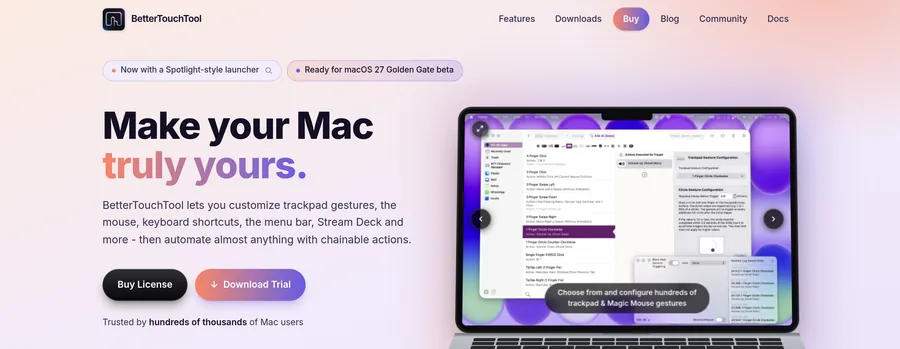
Why you want it. BetterTouchTool is a gesture and shortcut utility that unlocks far more from the Mac trackpad, mouse, and keyboard than Apple exposes by default. The Mac trackpad can do less than it is capable of. BetterTouchTool lets you assign custom actions to gestures, such as three fingers down to close a tab or four fingers left to switch desktops, and it can do this per app. Macwelt adds an important point: even if you use a mouse on an external monitor, the tool is still useful because its other half is arbitrary keyboard shortcuts for almost anything.
What it does. BetterTouchTool recognizes one-, two-, three-, four-, and five-finger gestures, plus tap sequences. It supports the MacBook trackpad, Magic Trackpad, and Magic Mouse. German reviews recommend leaving auto-updates enabled because the app hooks deeply into the system.
“BTT with some proper config can replace dozens of standalone apps. Definitely the best value Mac app. No subscription tops it off.”
Pricing. Trial for 45 days. A license with two years of updates is around 9,20 €, and lifetime is around 21,50 €.
Files, clipboard, and order
12. Dropover: A temporary shelf that appears under your cursor
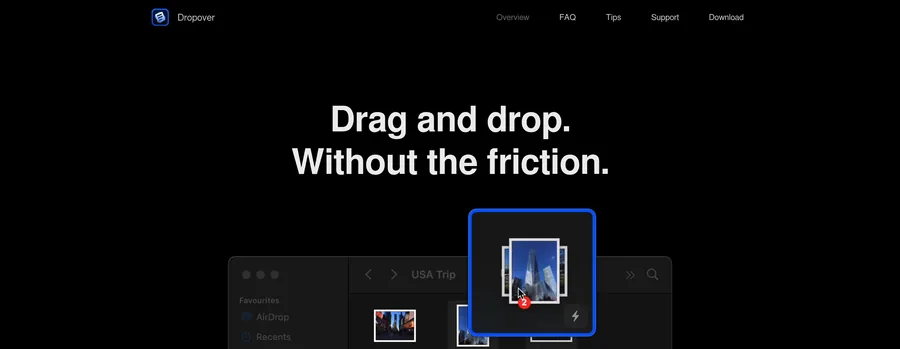
Why you want it. Dropover is a drag-and-drop shelf for collecting files from different places before moving or sending them together. The familiar problem: you need eight files from four folders and want to attach them to one email. Normally that means keeping every window open at once. Dropover removes the problem. Start dragging a file, lightly shake the cursor, and a shelf appears. You can drop anything onto it from anywhere, then move the whole set in one gesture.
What it does. You can have multiple shelves, they stay above other windows, and they do not get in the way. ifun.de calls it the most practical drag-and-drop extension on the Mac, and after seven years in the App Store the app has reached version five.
Pricing. Download is free. The 4,49 € purchase activates only after 14 days of use.
13. Maccy: Clipboard history behind one keyboard shortcut
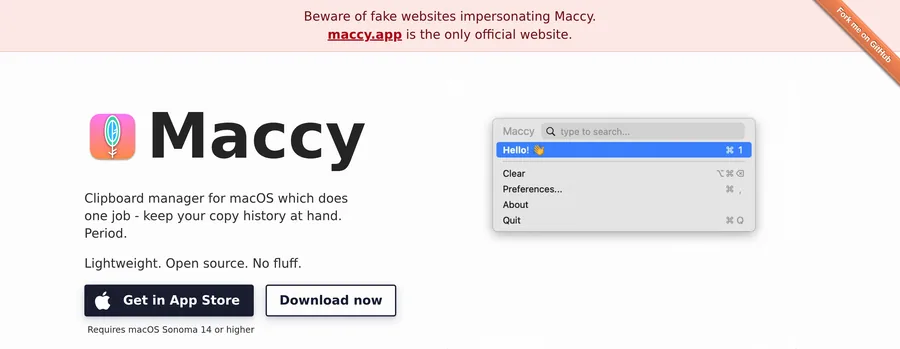
Why you want it. Maccy is a lightweight clipboard manager that saves everything you copied, so the previous item does not vanish the moment you copy a new one. Copy a link, then copy text, and the link is gone forever. Maccy keeps what you copied during the day and brings it back with one shortcut and full-text search. It stores not only text, but also files and images.
What it does. By default, Maccy keeps the last 200 entries. It lives in the menu bar, weighs very little, is deeply configurable, and is immediately understandable. One security detail matters: specific apps, especially your password manager, can be excluded from monitoring so passwords do not land in clipboard history.
“I use Maccy daily. It is a fantastic and resource light clipboard manager.”
Pricing. Free from GitHub. In the Mac App Store it costs 11 €, which is simply a way to support the developer. The functionality is identical.
14. Hazel: A folder that cleans itself
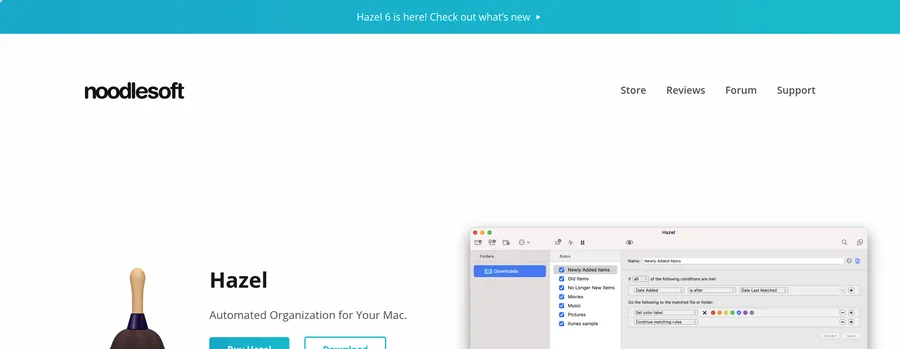
Why you want it. Hazel is a file automation tool that watches folders and applies “if this, then that” rules so you do not have to clean them manually. Downloads can become a mess in a week. Hazel watches selected folders and applies rules: screenshots older than a month go to archive, installers go to trash after installation, invoices move to an accounting folder with the right name. Set it once, and the cleanup stops being your job.
What it does. Hazel’s strongest feature is one that often gets underplayed: it can read not only file names and dates, but also metadata and document contents, including recognized PDFs. A rule can say, in effect, “if this PDF contains the word ‘invoice,’ rename it by date and move it to the client folder.” Files can also be archived, tagged, and handed off to other workflows.
Pricing. $25 one-time, trial for 14 days.
Automation and system work
15. Keyboard Maestro: The heavy artillery of Mac automation
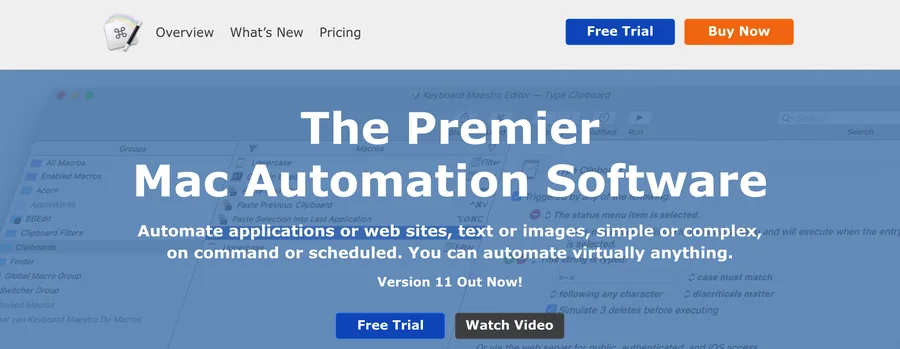
Why you want it. Keyboard Maestro is a full automation system for turning repeated multi-step Mac tasks into a single trigger. If you catch yourself doing the same eight-step sequence every day, Keyboard Maestro can turn it into one key. Each macro has a trigger, such as a hotkey, app launch, time of day, or clipboard change, and then it can do almost anything that can be done on a Mac.
What it does. rete-mirabile describes the learning curve better than most: beginners can simply record their clicks and immediately get a working macro, while experienced users move on to complex setups like window layouts for any monitor size. Inside, there is a built-in clipboard manager, web page automation, and scheduled execution.
Pricing. $36 one-time, with a free trial.
16. Homebrew: Install software with one command
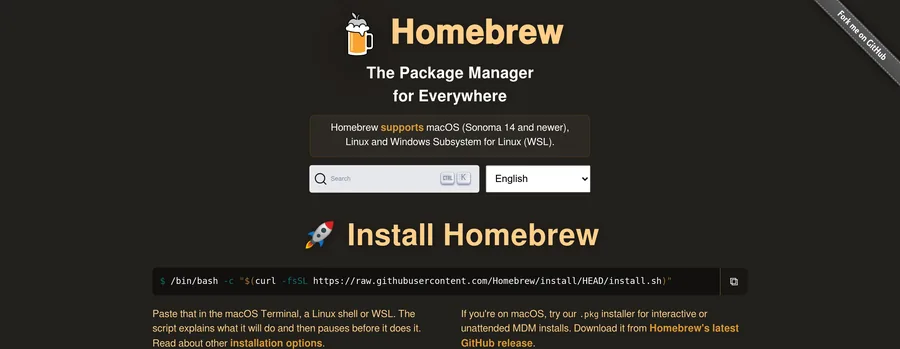
Why you want it. Homebrew is the Mac package manager that replaces website-hopping, .dmg downloads, and manual version tracking with a Terminal command. Instead of visiting ten sites and managing updates yourself, you type one command. Homebrew handles sources, versions, and dependencies. Through <code>cask</code>, it installs normal graphical apps too, not just command-line tools, which means a new Mac can be set up with one script.
What it does. Phlow puts the benefit neatly: installation becomes reproducible, updates become manageable, and removal becomes clean. Before installation, you will need Xcode Command Line Tools, which Homebrew will prompt you to install. It installs via the official script, which correctly sets paths and permissions.
Pricing. Free, open source.
17. Obsidian: Notes that remain yours
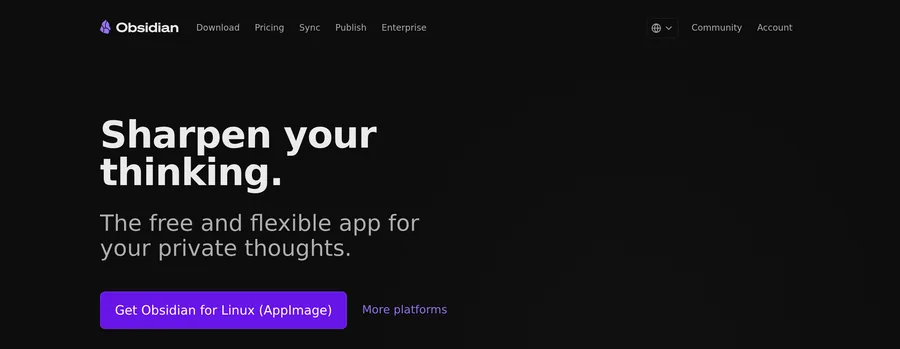
Why you want it. Obsidian is a notes app built around ownership, because your notes live as plain Markdown files in a folder on your disk. The main argument is not features, but control over data. There is no proprietary database and no mandatory third-party server. If the app disappeared tomorrow, your notes would still open in any text editor. For anyone building a knowledge base over years, that is decisive.
What it does. The graph view shows how notes connect to each other, and each note shows its backlinks. Advanced features are off by default, so the start remains simple. Then come plugins: Dataview for dynamic tables, Excalidraw for diagrams, Copilot and Smart Connections for LLM work, including local models through Ollama without sending data outside.
Pricing. Free for personal use.
Security, privacy, and system cleanup
18. 1Password: Passwords you no longer have to remember

Why you want it. 1Password is a password manager that remains the French tech press’s benchmark for balancing ease of use and security. The practical value is simple: passwords are generated, stored, and filled automatically, while work and personal data live in separate vaults that do not get mixed together.
What it does. Watchtower monitors compromised and outdated passwords and tells you what needs changing. Its distinctive feature among competitors is Travel Mode, which temporarily removes selected vaults from a device so they are physically not on the laptop while crossing a border. Sync across Mac, iPhone, Windows, and browsers is seamless.
Pricing. Here is the one catch: from 27 березня 2026 року, the individual subscription costs 43,80 € without VAT per year, and the family plan for five people costs 69 €. The price increase triggered a separate 442-comment Reddit discussion, so if subscriptions are a hard no for you, look at Bitwarden.
19. Little Snitch: See where your Mac is actually connecting
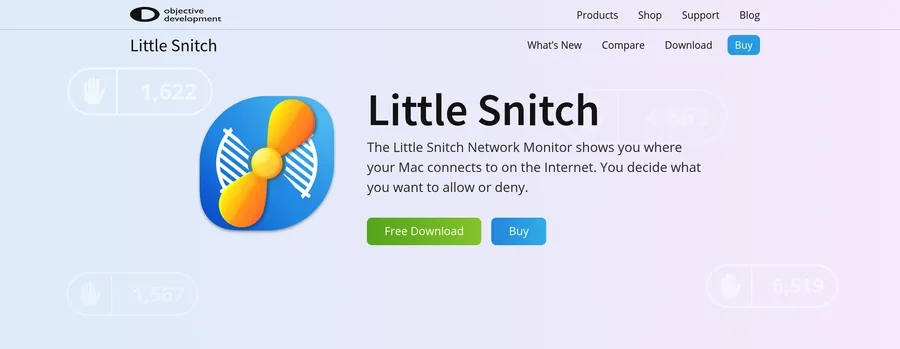
Why you want it. Little Snitch is a network monitor and firewall that shows when apps try to connect to the internet and lets you decide what to allow. Apps constantly talk to the internet, and by default you see none of it. Little Snitch alerts you whenever a program tries to reach out and lets you allow it once, allow it forever, or block it. The most convincing feature is the built-in Network Monitor, which maps exactly where traffic is going. The first day of use is usually an uncomfortable education.
What it does. Developed by Vienna-based Objective Development for more than twenty years, Little Snitch filters both outgoing and incoming connections. For users who only want monitoring without rule-making, there is the lighter Little Snitch Mini.
Pricing. 59 € for a single license. Version 6 works on macOS 14 Sonoma and newer.
20. Pearcleaner: Removes apps completely
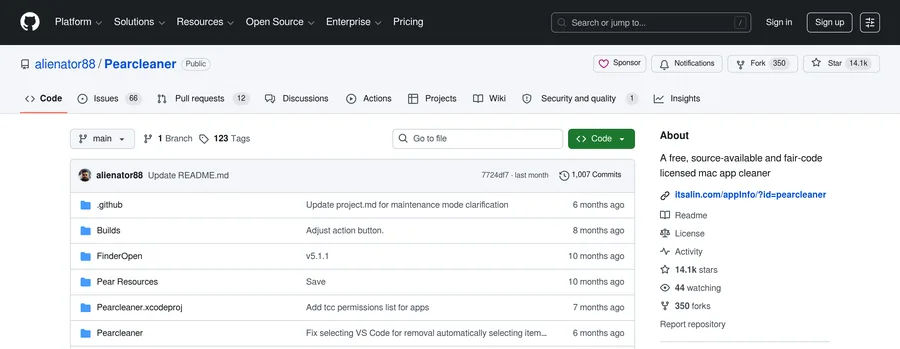
Why you want it. Pearcleaner is an open-source app uninstaller that finds the caches, logs, configs, and launch agents left behind when you drag an app to the Trash. Over a year, that residue can become tens of gigabytes of junk from software you no longer use. Pearcleaner shows installed apps and, with one click, finds the files each app scattered across the disk.
What it does. AppCleaner was the classic in this category for a long time, but Tutonaut puts the difference fairly: AppCleaner is simple and still works, but it is effectively no longer being developed. Pearcleaner is fully open source, actively updated, and transparent about the removal process, so you can see exactly what will be deleted. A bonus feature, App Lipo, strips unused CPU architecture from universal apps and frees space.
Pricing. Free, open source.
FAQ
Which apps should I install first on a new MacBook?
The best first four apps for a new MacBook are Raycast instead of Spotlight, Rectangle for windows, Thaw for the menu bar, and Sowiks for screenshots. Three of them are free. Add the rest only when you feel a specific need, because installing everything at once is not the point. As a starter pack, these are also among the best MacBook apps because they improve the things you touch in the first fifteen minutes.
Is it worth paying for Mac apps in 2026?
Yes, but the best value in 2026 is usually a one-time purchase, not another subscription. Half of this list is free and covers the basic scenarios well. The clearest trend from the past year is that the r/macapps community is deliberately voting for lifetime licenses over recurring payments. The biggest discussions of the year were exactly about that. Practical rule: paying $6–36 once is usually easy to justify, while subscriptions deserve more scrutiny.
Raycast or Alfred?
Raycast is the better choice if you want ready-made work integrations, AI features, and a modern interface, and you do not mind a subscription for advanced features. Alfred is better if you want a one-time purchase, deep automation through Workflows, and less cloud involvement. Both have useful free versions, so the honest answer is to install both for a week. They are two of the best Mac productivity apps, but they suit different temperaments.
What should replace Bartender in 2026?
Thaw is the best Bartender replacement in 2026 because it is actively maintained, free, and open source. Bartender moved to a new owner, which the community received badly, and Ice, the free answer that followed, stopped being updated. Thaw is a fork of Ice that imports its settings, continues active development, and keeps the same open-source direction.
How much does this whole setup cost?
Nine apps in this list are completely free, and several of the best free Mac apps here are good enough that you may never need their paid competitors. If you buy every paid app in its minimum edition, the total is roughly 200–250 € in one-time costs, plus a password-manager subscription. But do not build the whole setup in one day. Start with the free tools, then pay only when you hit a real limitation.
Bottom line
The common thread across all twenty apps is that they remove friction rather than add features. None of them ask you to learn a new way to work. They speed up what you already do every day: capture the screen, find a file, arrange windows, copy text, clean up afterwards.
If you install one thing today, start with whatever you do most often. For most people working with a team that is the screenshot, and our guide to capturing a full page on Mac picks up where the built-in tool stops.
Vasyl is a Product Marketing Manager at MySignature with experience in SEO and Growth. He has been featured on HubSpot, The Next Web, ActiveCampaign, and other well-known marketing blogs.