Best screenshot app for Mac in 2026
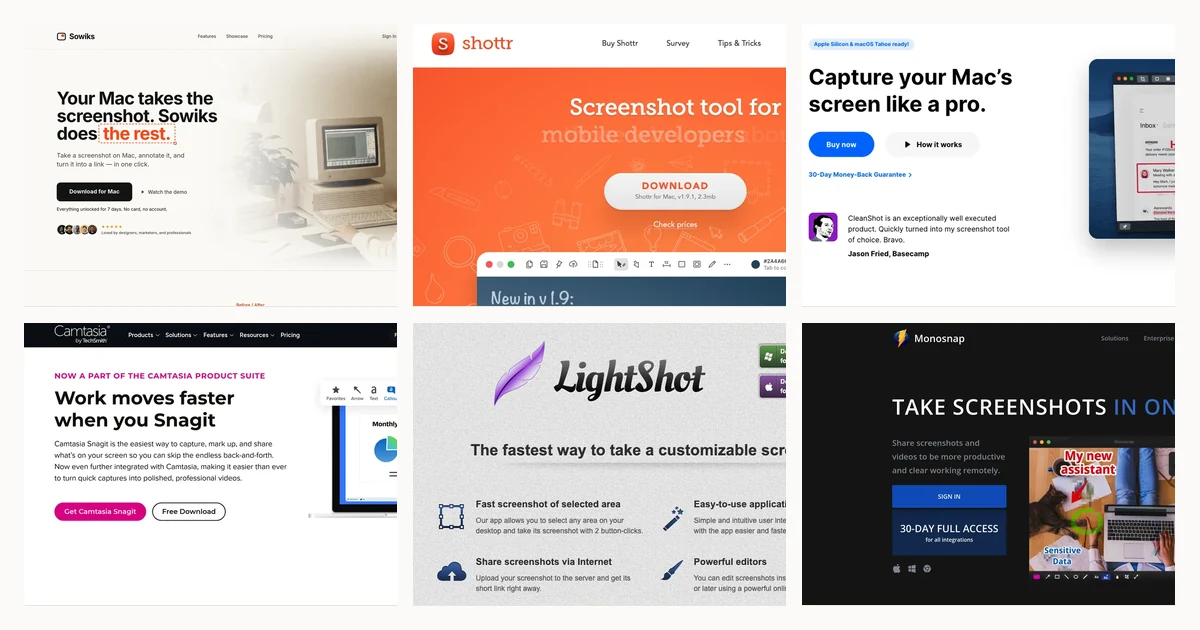
The best screenshot app for Mac depends on what you need after the capture. Shottr is the best lightweight starting point, CleanShot X is the best all-in-one paid app, Sowiks is best for share links you can password-protect and expire, and for recording a clip without adding a second app, Snagit is best for mixed Windows and Mac documentation teams, and Xnapper is best for screenshots you publish rather than send. For simple captures, the built-in macOS tool is still enough.

On this page
macOS already handles the basics with Command + Shift + 3, 4 and 5. A third-party app earns its place when you need one-step annotation, scrolling capture, OCR, screen recording, a repeatable capture workflow, or a share link instead of another file on your desktop.
| What you need | Best pick |
|---|---|
| Simple captures, nothing installed | macOS built-in |
| A fast, light everyday app | Shottr |
| Everything in one paid app | CleanShot X |
| Share links you can lock and expire | Sowiks |
| Screen recording or a GIF you can send as a locked link | Sowiks |
| Pixel measurement and UI work | Shottr |
| Documentation across Windows and Mac | Snagit |
| Polished screenshots for publishing | Xnapper |
| Scrolling capture you can rely on | CleanShot X, then Snagit |
Before you install anything
Ask experienced Mac users which screenshot app to buy, and the most common answer might surprise you: it's not an app at all. Plenty of them own a paid tool and still reach for Command + Shift + 4 daily, opening the paid one a few times a year for a scrolling capture. If you want the built-in workflow in full, we covered it in how to screenshot on a Mac.
So be blunt about who the rest of this is not for. If you take a handful of screenshots a week and paste them straight into Slack, nothing below will improve your life. If you refuse on principle to pay for something the operating system already does, stop at Shottr's free tier.
One caveat before scrolling capture sells you something: browsers already do full-page screenshots themselves, Firefox from the right-click menu, Chrome and Edge from developer tools. So does our own website screenshot generator, from a URL and without opening the page. That covers web pages and does nothing for a chat window or an app that is not a browser.
The step that actually costs you time
Ask someone switching from Windows what they miss and it is rarely a feature. It is a sequence. In the Snipping Tool you press one shortcut, drag, annotate, and the result is already on the clipboard, with no file created anywhere.
macOS makes you choose between the two halves. Capture to a file and you get the floating thumbnail and its markup tools, but the annotated result lands on your desktop rather than your clipboard, so you open it, copy it, then go back and delete the file. Add Control to capture straight to the clipboard and the thumbnail never appears, so there is nothing to annotate. One or the other, never both. The native workaround is Preview: capture to the clipboard, then File, then New from Clipboard, which gives you something to mark up without writing a file to disk. It works, and it is five steps to do what one shortcut does elsewhere.
Closing that loop is what every app below is really selling. Judge them on how few steps it takes, because that is the sequence you repeat several times a day.
How they compare
| Annotation | Scrolling | OCR | Recording | Share links | Runs on | Price | |
|---|---|---|---|---|---|---|---|
| macOS built-in | Basic markup | No | Live Text | Video | None | macOS | $0 |
| Shottr | Full, fixed fonts | Yes, with caveats | Yes, plus QR | None | S3, once switched on | macOS 10.15+ | Free, or $12 once |
| Sowiks | Full | Yes | Yes | Video + GIF | Password + expiry | macOS 15.5+ | $19.99 once |
| CleanShot X | Full | Yes, pausable | Yes | Video + GIF | Yes | macOS 13.0+ | $35 once, or $10 per user, per month |
| Xnapper | Basic | No | No | None | No | macOS | $29.99 once, one Mac |
| Snagit | Full, with templates | Yes | Yes | Video + GIF | Screencast hosting | Windows + macOS | $39 per user, per year |
| Lightshot | Basic | No | No | None | Public prnt.sc | Windows + macOS | Free |
The apps, one by one
Shottr
Price: Free, or $12 once for one user on up to five computers. A license is required for commercial use.
Best for: developers and anyone who wants the app to disappear between captures.
Shottr suits the person whose screenshot is never the point. You are filing a bug, checking the spacing between two elements, or grabbing an error message the dialog will not let you copy, and the capture is one step inside a job you were already doing. It opens the instant you press the key, does that step, and gets out of the way again without asking you to sign in or manage a library.
Key features
- Pixel ruler on the arrow keys, which is the reason UI and front-end people keep it in the menu bar
- Eraser that fills the wiped area with a matching background color, so a redaction does not announce itself as one
- Cmd + Click to select an on-screen element automatically
- Keyboard crop sequence: V to crop, A to snap to the window boundary, Shift + ] for padding, Enter to finish
- Scrolling capture you can click to stop early
- OCR with QR code decoding, plus a color picker
- Repeat-region capture, for giving feedback on the same panel of a design week after week
- Clean handling of transparency, so window captures keep their shadows
Limitations
- No screen recording of any kind, only a two-frame before-and-after animation built from images you already have
- Text annotation font and size are not adjustable, so screenshots cannot match a house style
- The blur tool pixelates rather than blurs, which looks crude over faces and logos
- The editor zooms in whole 100% steps
- Scrolling capture fails on some pages
Verdict: the best starting point for most people, and the only one here where one license covers several Macs. The missing recording is what sends bug-reporters and anyone explaining a click sequence elsewhere.
Weighing up alternatives to Shottr? Our side-by-side comparison puts it against CleanShot X, Snagit, Monosnap and four others.
CleanShot X
Price: $35 once, including a year of updates, then $19 a year if you want to keep receiving them. Pro is $10 per user per month with unlimited storage. macOS 13.0 or newer, 30-day money-back guarantee.
Best for: people who want capture, annotation, sharing and recording in one polished app.
CleanShot X is for people who have quietly accumulated a stack: one tool to capture, another to annotate, a third to record a short clip, something else to get it uploaded. It replaces all four. The value is less any single feature than the fact that whatever you need next is already in front of you, so a screenshot stops turning into a detour through three other apps.
Key features
- Editable history: reopen last week's screenshot and fix a typo in a callout instead of recapturing
- Repeat the last capture region on a shortcut, for series that line up exactly
- Capture locked to an aspect ratio, for thumbnails and social posts
- Pinned screenshots with scroll-adjustable opacity, pinch zoom and a click-through lock, which turns a reference into an overlay rather than another window in the way
- Scrolling capture you can pause mid-scroll
- Magnifier on the capture crosshair, and a crop tool that remembers your last region
- Canvas extension with a transparent margin rather than white
- OCR, cloud links with 1 GB of storage, video and GIF recording
Limitations
- No ordinary trial; the only way to run it without buying is a Setapp subscription
- Pixel measurement is not included and lives in PixelSnap 2, a separate $39 app, with 20% off for owners; if rulers are what you came for, Shottr includes them and charges nothing extra
- One active Mac at a time: activating your key on a new machine deactivates the old one
- Release pace is slow enough that long-time owners run builds a year or two behind without noticing
Verdict: worth the money if you use all of it. Overkill, and one machine short, if you mainly annotate and paste.
Looking for a CleanShot X alternative? The full comparison is here.
Snagit
Price: $39 per user, per year. Subscription only; the perpetual license is gone, and three years costs $117 for one person.
Best for: IT, support and documentation teams split across Windows and Mac.
Key features
- Step tool that auto-numbers annotations in sequence, built for instructions
- Templates and stamps, so a fifty-image manual looks like one person made it
- Scrolling capture across browsers and applications
- Video and GIF recording, with Screencast hosting and a free tier capped at 2 GB
- OCR across the capture library
- Identical output on Windows and macOS
Limitations
- Stopping payment ends access, which is true of nothing else here except CleanShot Pro
- Old perpetual keys can hit an activation limit; support normally resets the counter, but it is friction
- The most expensive option here for a single person
Verdict: the only right answer when documentation has to match across both platforms, and hard to justify otherwise.
Want off the yearly bill? Our Snagit comparison sets it against the paid-once options.
Xnapper
Price: $29.99 for one Mac, $54.99 for two, $79.99 for three, paid once with a year of updates.
Best for: marketing and anyone whose screenshots get published rather than sent.
Key features
- Automatic padding, balanced backgrounds and rounded corners applied at capture, not afterwards in a design tool
- Social-ready framing for changelogs, App Store listings and launch posts
- Presets, so a run of images comes out consistent
Limitations
- No OCR, no scrolling capture, no screen recording, no share links
- Priced per Mac rather than per person
Verdict: a finishing tool, not a capture suite. Excellent at the one thing, and not enough on its own.
Sowiks
Price: $19.99 once, inside the Mac app. Everything is unlocked for seven days from your first capture; after that, window capture and the full editor stay free for good.
Best for: sending screenshots to people outside your team.
This is the app we make, so weigh the section accordingly.
The part we built it around is what happens after the capture. Most tools here treat the share link as a convenience; this one treats it as the thing you are actually handing over, which is why the password and the expiry date are the features and not the storage. The other line worth naming is against Shottr, which does not record the screen at all, so if you occasionally need to show a sequence rather than a moment, that is the difference between the two.
Key features
- Share links that carry a password and an expiry date, so a screenshot sent to a client stops working on a date you choose
- Screen recording to video or GIF, with the camera in a bubble plus microphone and system audio
- Every capture mode including scrolling, with 1 GB of storage
- OCR on a selected region, including text in dialogs that will not let you copy
- Full annotation editor, free forever after the trial
Limitations
- macOS 15.5 or newer, the narrowest support here: Shottr goes back to Catalina and CleanShot to macOS 13
- No pixel ruler or distance measurement, so UI measurement work belongs to Shottr or PixelSnap
- The youngest app on this page, with the shortest track record
Verdict: the pick when the link matters more than the capture. Not the pick for an older Mac or for pixel work.
Free and open-source options
The free end of this category moves quickly, and the names worth knowing have changed in the last year.
macshot is the one to look at first: GPLv3, shipping frequently, with a video editor for trimming and speed changes, QR recognition, and OCR that can use Apple's on-device translation so recognized text never leaves the Mac. It hooks into Raycast and Alfred. Snapzy and OpenSnapper are the other open-source names that come up; Deskeen appears alongside them but is free rather than open source. All are young, and none has the track record of the paid apps above.
Two warnings about names you will see recommended. Greenshot is a Windows staple whose macOS build offers fewer features than the Windows version and is not free. ShareX, with 15 capture modes and export to about 70 services, does not run on macOS at all, and the request that keeps resurfacing from switchers is never about capture: it is custom uploaders and automatic copy-to-clipboard, which nothing on the Mac replaces cleanly. What switchers actually give up is worth reading before you plan a migration.
Lightshot
Price: Free.
Best for: throwaway captures you would be happy to see on a stranger's screen.
Key features
- Region capture in about two seconds, with basic arrows, text and shapes
- Instant upload and a share link with no account needed
- Reverse image search from a capture
Limitations
- Uploads go to prnt.sc under short, sequential addresses that can be reached without your link, which has been a known pastime for years
- The company behind it, Skillbrains, is based in Novosibirsk, Russia, and the app's own site names no company address, jurisdiction or storage location; the Mac App Store lists the seller as an individual
- No scrolling capture, no OCR, no recording
Verdict: fine for a throwaway grab. If you capture invoices, private chats, customer records or anything with a token in the URL, skip it.
Replacing Lightshot? The comparison page covers what each alternative does with share links.
Which one fits your job
The right pick changes more by role than by feature count. These are the apps above, sorted by who actually gets the most out of them.
Best for developers
Shottr. The pixel ruler, the color picker and OCR that lifts text out of an error dialog you cannot select from are daily tools, not extras, and the repeat-region shortcut makes a run of bug screenshots line up. It also runs on older machines still on Catalina, which matters when your build box is not your newest Mac. Reach for CleanShot X when a still image cannot explain the bug and you need a short recording instead.
Best for designers
Shottr again for measurement, or PixelSnap 2 if you are already paying for CleanShot X and want the same rulers inside it. CleanShot X earns its place here for two things designers use constantly: extending the canvas around a capture with a transparent margin rather than white, and pinning a reference shot that floats at reduced opacity with clicks passing through it. For handing work to a client, Xnapper frames it without opening a design tool.
Best for marketing
Sowiks. Marketing ships more moving assets than static ones now, and a five-second GIF of a feature does the work a screenshot of it cannot. Recording to video or GIF sits in the same app as the capture and the editor, so a demo clip for a landing page or a launch post does not need a second tool. The other half is handing it over: a link with a password and an expiry date is how you send an asset to an agency, a freelancer or a partner without it circulating after the campaign ends. Xnapper stays the better pick when the asset is a still that has to look designed, with padding and backgrounds applied at capture. CleanShot X for capture locked to an aspect ratio when the destination is a thumbnail.
Best for IT, support and documentation
Snagit, and it is not close, if your team spans Windows and Mac. Auto-numbered steps and reusable templates are what keep a long runbook consistent, and identical output on both platforms is the reason it survives every roundup. Sowiks for anything that leaves the building, because a link with a password and an expiry date is the difference between sending a screenshot and publishing one. Whatever you choose, keep Lightshot away from anything containing customer data.
The decision nobody names
The same sentence keeps surfacing from people who chose opposite tools: you fall in love with whatever you use first. Owners of several of these apps at once tend to land in the same place, that the extra polish of the most expensive option does not change the working day.
The paid Mac apps have largely converged on capture, annotate and share. The gaps that remain are the specific ones named above: Xnapper skips OCR and scrolling capture, CleanShot charges separately for rulers, Shottr does not record at all. Past those, what decides it is whether the step that annoys you every day is gone. Give whichever you pick two weeks before deciding.
The short version
macOS built-in. Best if you barely need one.
Capture, markup and screen recording, already installed. No links, no scrolling capture, no OCR beyond Live Text.
Shottr. Best all-round starting point.
Fast, tiny, pixel ruler, OCR, works across several Macs on one license. Test its scrolling capture before you rely on it, and look elsewhere if you need video.
CleanShot X. Best single app if you want everything.
Capture, annotation, pausable scrolling, OCR, cloud links and recording in one place. No trial outside Setapp, and rulers cost extra.
Sowiks. Best when the link matters.
Our own app: capture, editor, OCR, screen recording to video or GIF, and share links you can lock with a password and expire on a date. Needs a recent macOS.
Xnapper. Best for screenshots you publish.
Instant padding, backgrounds and framing. Nothing else: no OCR, no scrolling, no recording.
Snagit. Best for mixed Windows and Mac teams.
Step callouts, templates and hosting, on both platforms. The only one here you have to keep paying for.
Lightshot.
Free, and its uploads land somewhere they can be found without your link. Not for anything private.
Every app above has its own comparison page with the full feature grid: all Mac screenshot tool comparisons.
FAQ
Which Mac screenshot app has password-protected share links?
Sowiks, which is our app. A share link can carry a password and an expiry date, so a screenshot sent outside your team stops working on a date you choose. CleanShot X and Snagit both host screenshots and generate links; neither gives you a per-link password with an expiry the way this is built.
Can you expire or revoke a screenshot link on a Mac?
Yes, but only in apps that treat the link as the product. Sowiks lets you set an expiry date per link and delete a link at any time. Most tools here upload and hand you a URL that stays live indefinitely, and Lightshot's uploads can be reached by people you never sent the link to.
Do Mac screenshot apps need Screen Recording permission?
Yes, all of them, including apps that only take still images. macOS treats reading the contents of your display as screen recording, so the dialog sounds more invasive than what the app does. Since Sequoia, macOS also re-asks periodically rather than once: Apple planned a weekly prompt during the beta, settled on monthly after the reaction, and dropped the prompt on every reboot. It applies to every capture tool, not just the ones here.
Which Mac screenshot app measures pixels?
Shottr, with a ruler on the arrow keys plus a color picker, at no extra cost. CleanShot X does not include measurement; that lives in PixelSnap 2, a separate $39 app from the same developer that integrates with it, with 20% off for CleanShot owners.
Which screenshot app works on an older Mac?
Shottr goes back to macOS Catalina, which is the widest support here. CleanShot X needs macOS 13, and Sowiks needs macOS 15.5, so a Mac stuck on an older release rules both out.
Is Shottr free?
Yes, with a nudge. Shottr is free to use and starts asking you to consider upgrading after 30 days, and nothing stops working if you never pay. A paid license is required for commercial use and covers one user across five computers.
Is CleanShot X a subscription?
Basic is not. You pay once, and the app keeps working on the version you bought whether or not you ever renew. Only the Pro tier is a subscription.
Which Mac screenshot app has the best OCR?
Shottr and CleanShot X both read text reliably, and Shottr also decodes QR codes. Sowiks does OCR on a selected region, including text in dialogs that will not let you copy. If you want OCR without changing screenshot apps, TextSniper does only that, and macOS Live Text already covers the simplest cases.
Which app should I use for scrolling screenshots?
CleanShot X handles it most consistently and lets you pause mid-scroll. Snagit is solid. Shottr does it, but it fails on some pages. Test any of them on the page you actually need before relying on it, because the failure mode is always the same: fixed elements. Sticky headers, chat bubbles, cookie banners and floating navigation get captured repeatedly and reappear at random points down the finished image, and two tools shooting the same page will often disagree even when both advertise sticky-header detection. If the need is occasional, browsers already do full-page capture for free.
Can the built-in Mac screenshot tool record video?
Yes. Command + Shift + 5 records the full screen or a selected region, with a timer and a choice of save location. It does not make GIFs, and it will not give you a share link.
Is Lightshot safe to use?
Not for anything private. Its uploads go to prnt.sc under short, sequential addresses that can be reached without your link, and the company behind it discloses no jurisdiction or storage location. For throwaway captures it works; for work material it is the one to skip.
What is the best free screenshot app for Mac?
For most people it is the one already installed. If you need more, Shottr's free tier is the fullest free option that is also actively maintained, and macshot is the strongest open-source choice.
What is the best Snagit alternative on a Mac?
Shottr if you are paying for yourself, CleanShot X if you want recording and cloud links in the same app, Sowiks if the point is controlling who can open the link. If you need Snagit because your documentation has to match a Windows team's, no Mac-only app replaces it.
What is the best ShareX alternative for Mac?
There is no clean equivalent. Switchers miss custom uploaders and automatic copy-to-clipboard rather than capture features, and no Mac app reproduces ShareX's roughly 70 upload destinations. CleanShot X and Sowiks come closest on the sharing half; Shottr can upload to S3 once you switch it on.
Sowiks or CleanShot X?
CleanShot X is the deeper toolkit: editable annotation history, capture locked to an aspect ratio, a pin you can see through, and support back to macOS 13. Sowiks is the one built around the handover, so the link carries a password and an expiry date and costs less. Pick CleanShot X if the app itself is the workspace; pick Sowiks if what leaves your machine matters more than what happens on it, and your Mac is recent enough.
Shottr or Sowiks?
The dividing line is recording. Shottr does not record the screen at all, so if a still image always does the job, it is the cheaper answer, runs back to Catalina and covers five computers on one license. Sowiks records to video or GIF and turns a capture into a link you can lock and expire, but it needs macOS 15.5 and has no pixel ruler. Developers measuring interfaces should take Shottr; anyone sending work to clients or recording short demos should take Sowiks.
Vasyl is a Product Marketing Manager at MySignature with experience in SEO and Growth. He has been featured on HubSpot, The Next Web, ActiveCampaign, and other well-known marketing blogs.
When the link is the thing you are handing over
Sowiks captures, annotates and records from the macOS menu bar, then gives you a share link you can lock with a password and expire on a date. Free for local capture and editing.
Download Sowiks for Mac